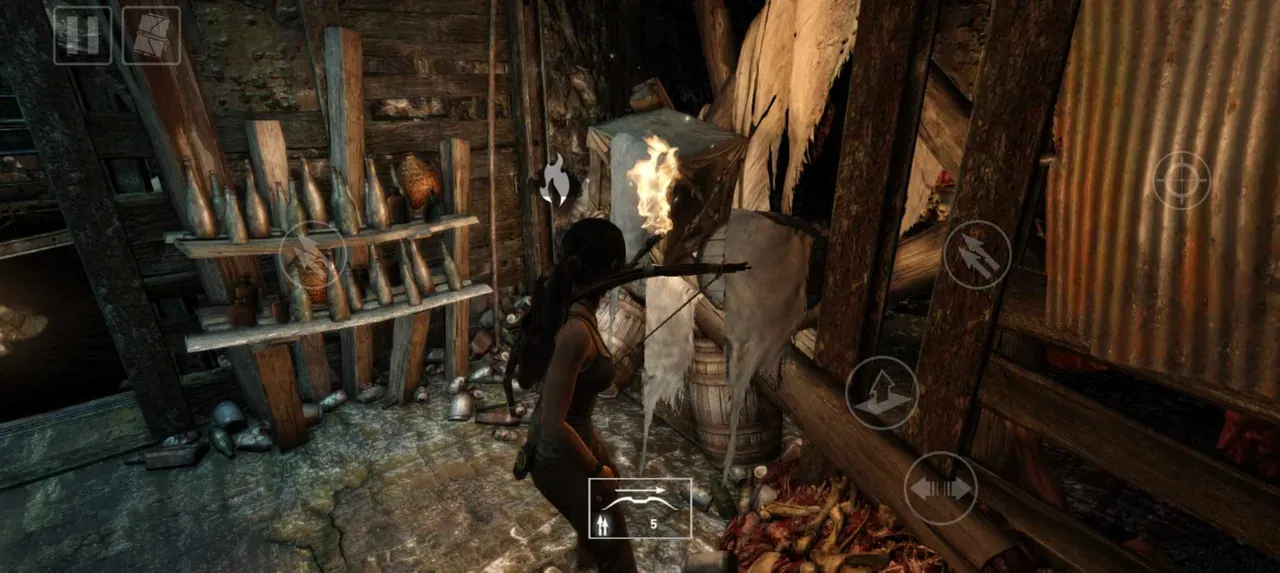
Start Tomb Raider mobile in Performance mode, use Soft Aim, enlarge any touch buttons you miss under pressure, and keep far more free storage than the storefront download number suggests. Move to Graphics mode only after you know the game stays smooth and your phone remains comfortable during combat.
This guide is for Feral Interactive’s Android and iOS version of the 2013 adventure, not Tomb Raider Reloaded or Tomb Raider I–III Remastered. Read the full Games Ranker Tomb Raider mobile assessment before buying if you still need to check price, supported devices, or whether the complete campaign suits you.
A sensible starting setup
| Setting | Start with | Change it when |
|---|---|---|
| Graphics preset | Performance | Use Graphics for more detail on a stable device; use Battery Saver for longer unplugged sessions |
| Controls | Touch with Soft Aim | Connect a controller for longer combat sessions or more precise camera movement |
| Touch layout | Larger action buttons with comfortable opacity | Reduce opacity only after the controls become familiar |
| Aim | Soft Aim; optional gyro on supported devices | Reduce assistance only if you prefer fully manual aiming |
| Subtitles | A size readable at normal phone distance | Increase the size before story scenes if the default feels cramped |
| Frame-rate override | Leave the preset limit in place initially | Experiment only after checking heat, stability, and battery use |
These are safe starting points, not universal performance promises. The available preset and frame-rate choices depend on the device, and two phones running the same operating system can behave differently.
Check compatibility and storage before changing settings
Settings cannot rescue unsupported hardware. The current iOS listing requires iOS or iPadOS 18 and a supported A12 Bionic-class device or newer. Google Play requires Android 13 or later and applies a supported-device check. Being able to find the listing does not automatically mean a particular phone is eligible.
Storage also needs planning. Feral’s release guidance says installation requires at least 11 GB free on iOS and 12.5 GB on Android, while recommending approximately twice that amount to reduce installation problems. The US App Store showed a 9.6 GB download when checked on August 30, 2026, but download size, installed size, and temporary installation space are different measurements.
If your phone is close to full, read why mobile games need more space than the listed download before removing files. Clear enough space first rather than hoping the installer will fit exactly.
Choose the right graphics preset
Tomb Raider provides Performance, Graphics, and Battery Saver presets. The best choice depends on whether you value control response, visual detail, or longer battery life.
Performance is the best default
Start here for combat, aiming, and traversal. Independent mobile testing reported that Performance mode produced smooth results on recent flagship hardware, while a Gadgets 360 reviewer preferred its responsiveness over the sharper but slower Graphics preset.
Performance mode does not guarantee the same frame rate on every phone. Notebookcheck’s attributed device comparison found that available modes and sustained performance changed across different iPhone generations. Treat the preset name as a target chosen for your hardware, not a fixed specification.
Graphics is for stable devices and slower play
Use Graphics mode when the game already runs comfortably and you prefer environmental detail over maximum responsiveness. Test it during a busy encounter rather than judging it from a quiet menu or opening scene. If aiming feels heavy, frames become uneven, or the phone grows uncomfortable, return to Performance.
Battery Saver is useful away from a charger
Battery Saver trades visual ambition for a less demanding session. It makes the most sense during travel or when preserving charge matters more than image quality. It is not automatically the coolest mode on every device, so heat and battery drain should still be judged during actual play.
The current store version also lists an advanced option that can override a preset’s frame-rate limit. Leave that alone during the first session. A higher limit can increase power use and heat without producing a stable improvement.
If the phone grows hot across this and other demanding games, use our safe phone-cooling checklist before changing more Tomb Raider controls. It separates ordinary warmth from a temperature warning and starts with the settings most likely to reduce the workload.
Make touch controls easier to read and reach
The touch interface supports left- and right-handed defaults plus adjustments to button position, size, and opacity. Multiple independent reviewers found it unusually responsive for a console-style action game, but the default layout still cannot match every hand size and screen shape.
Use this order when adjusting it:
- Choose the handed layout that keeps movement under your stronger thumb.
- Move frequently used actions into comfortable reach without stretching.
- Increase important buttons before reducing their opacity.
- Play one combat encounter and one traversal section.
- Only then make the overlay less visible.
Do not shrink controls merely to make the screen look cleaner. A button you cannot hit reliably is more distracting than a visible overlay.
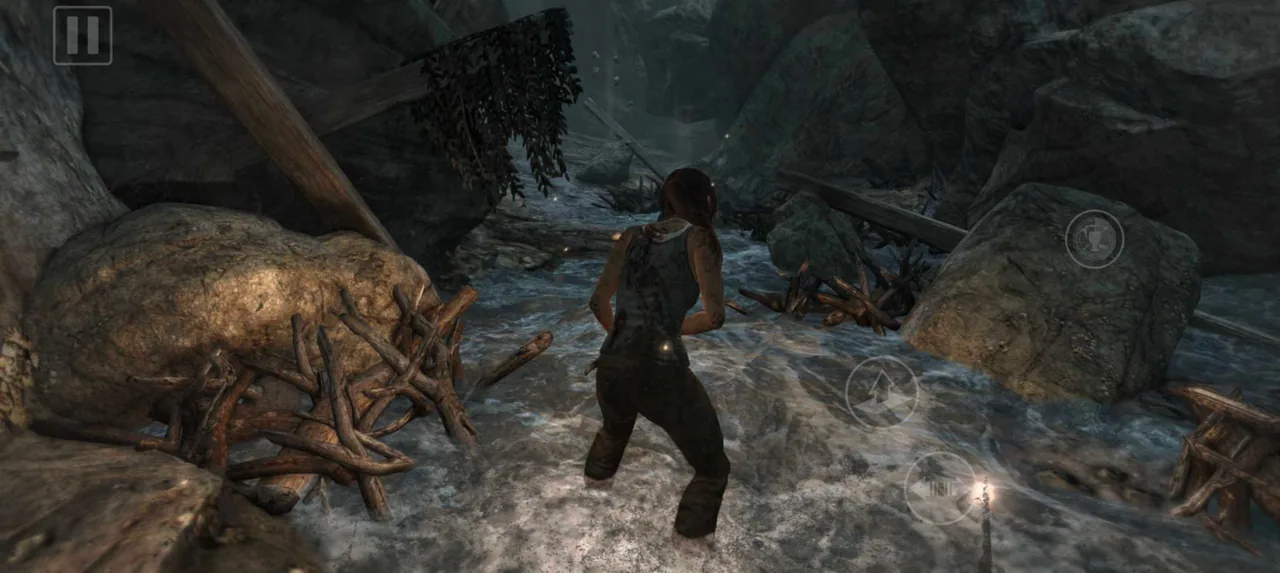
Use aim assistance before abandoning touch
Soft Aim is the practical starting choice for a small screen. The current update notes say its aim adjustment and general auto-aim reliability were improved. Gyroscopic motion aiming is also available on supported devices, which can help with small corrections after the right thumb makes the larger camera movement.
If touch aiming still feels tiring, connect a compatible gamepad. Feral advertises full controller support, and named independent reviewers reported successful use with Backbone, Xbox Wireless, and GameSir hardware. A controller is particularly useful for long sessions, but it does not make the game’s storage or device requirements less demanding.
Improve subtitles and quick-time events
The current mobile version offers three subtitle sizes. Choose one that remains readable while holding the phone at your normal play distance, not while leaning toward it in a settings menu.
Accessibility options can also reduce the repeated button pressure required by quick-time events. That is worth configuring before the campaign becomes more demanding. These options do not remove the core exploration or combat; they reduce input friction inherited from the original game.
If the climbing axe seems unreliable
A common touch-control mistake is pressing jump twice. In a response on the App Store listing, Feral explained the intended sequence: jump toward the climbable wall, then tap anywhere on the screen to engage the climbing axe. Do not press jump again after attaching, because that can make Lara release the wall.
If the same input still fails repeatedly, confirm that the game is updated, restore the affected control to a comfortable size, and use the in-game Help & Support contact rather than repeatedly changing graphics settings. Graphics presets do not change the climbing input.
The setup to keep
For most supported phones, Performance mode, Soft Aim, readable subtitles, and a comfortably sized touch layout form the best first setup. Add gyro if it feels natural, or use a controller when precision matters more than portability. Move toward Graphics mode only when the device proves it can sustain the change without uncomfortable heat or uneven combat.
The Games Ranker scoring method treats controls, performance, value, and phone suitability separately. Your own setup should do the same: choose the options that make the game easier to control and live with, not the ones that produce the most impressive screenshot.
Frequently asked questions
Which graphics mode should I use in Tomb Raider mobile?
Performance is the safest starting point because responsive aiming and combat matter more than a small increase in visual detail. Try Graphics mode if your device stays smooth and comfortable, or Battery Saver when heat and battery life matter more than image quality.
Are Tomb Raider mobile touch controls customizable?
Yes. The mobile edition provides left- and right-handed layouts and lets players adjust the position, size, and opacity of touch controls. Soft Aim and gyroscopic aiming on supported devices can also reduce the precision demanded from virtual sticks.
Does Tomb Raider mobile support a controller?
Yes. Feral advertises full gamepad support on Android and iOS, and independent reviewers reported successful play with Backbone, Xbox, and GameSir controllers. Compatible keyboard and mouse input is also supported.
How much free space does Tomb Raider need on a phone?
Feral says to keep at least 11 GB free for installation on iPhone or iPad and 12.5 GB on Android, and recommends roughly twice those amounts to avoid installation problems. The storefront download figure is not the same as the temporary space an installation may need.
How do I use the climbing axe with touch controls?
Feral's App Store support response says to jump toward the climbable wall and then tap anywhere on the screen to engage the axe. Do not press the jump button a second time, because that can make Lara release the wall.
Can older phones run Tomb Raider mobile?
Only supported devices should be expected to run it reliably. The iOS edition requires iOS 18 and supported A12 Bionic-class hardware or newer, while Android requires version 13 and a supported device. Available graphics presets can also differ by hardware.