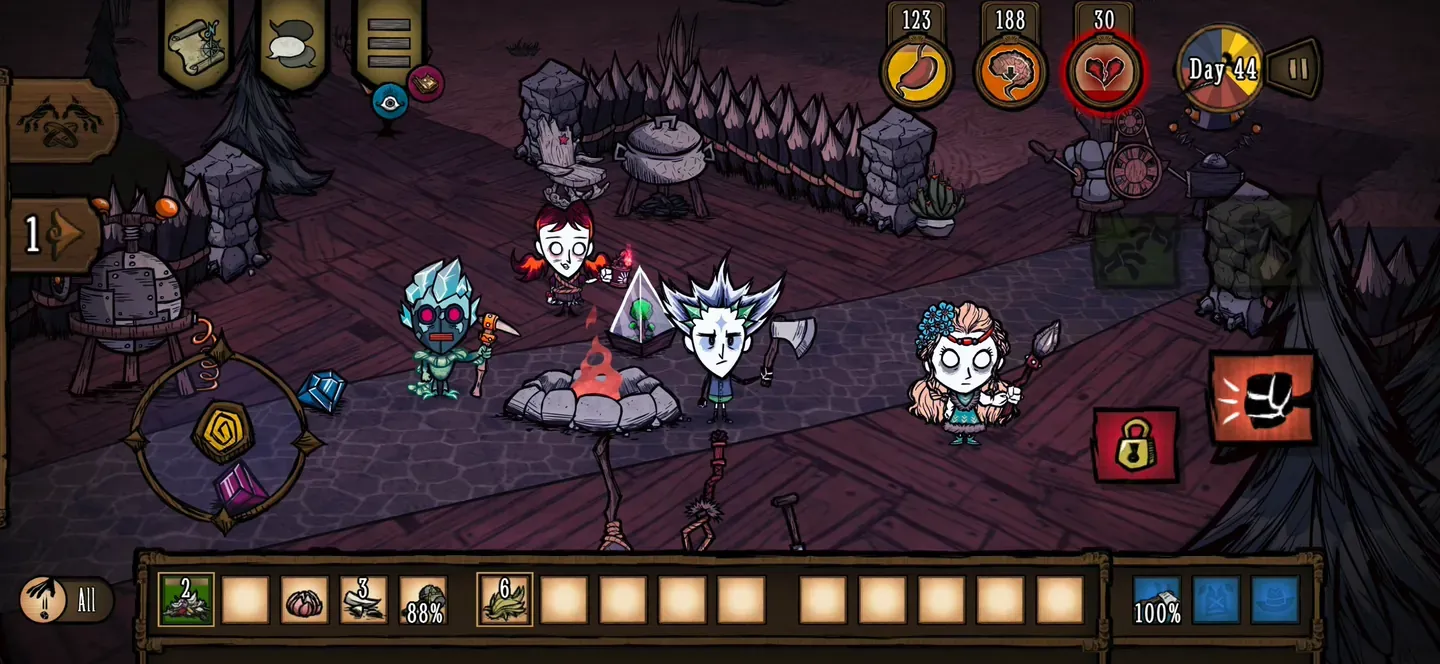
For solo play in Don’t Starve Together on a phone, choose Host Game, set the player count to 1, pick Local Only, and turn on Auto-Pause. For co-op, let the friend with the most capable phone host, because a device with 4 GB of RAM or less cannot add Caves to the world it hosts. Everyone must also be on the same game version, or the server will not appear in their list.
The mobile setup screen looks like the PC one, but three mobile rules change the right choices: memory decides who can host Caves, the world exists only while the host’s phone is running it, and PC and console players can never join. The steps below come from Playdigious’s own support documentation and patch notes, checked September 23, 2026 against the current 2.1.1 build (listed as 1.2.3 on the App Store). They are not from a Games Ranker playthrough, and a future update may change menu names or limits.
Before you create anything
Playdigious’s server creation instructions start by telling you to sign in to your Klei account. Joining a server has the same requirement. Do it now, while you have a connection.
If you already own skins or characters on Steam, PlayStation or Xbox, link that account before your first world. The linking steps require the same verified email on both accounts, and you confirm by typing LINK ACCOUNTS in capitals. If you get “The authorization state is invalid” or “Session has expired”, Playdigious says an installed Steam app can block the web view. Its fix is to remove the Steam app and link again. Linking restores unlocks, not saves: PC and console worlds cannot be imported, and progress does not move between Android and iPhone. Our guide to moving game purchases between phones covers the wider store rules.
The settings in order
Playdigious lists the Host Game options in this order. Here is what to pick on a phone:
| Setting | Solo | Co-op with friends |
|---|---|---|
| Playstyle | Relaxed to learn, Survival once you know the seasons | Endless for groups who drop in and out; Survival for a shared challenge |
| Caves | On only if the option is available on your phone | Decided by the host’s phone, not yours |
| Name and description | Anything | Something your friends can search for |
| Password | Not needed with Local Only | Set one for a friends-only world |
| Players | 1 | 2 to 6 |
| PvP | Off | Off unless everyone wants it |
| Public or Local Only | Local Only | Public for friends elsewhere; Local Only for the same Wi-Fi network |
| Forest tab | Defaults | Defaults for your first world |
Local Only is the LAN setting. Playdigious confirms it creates a local server, which is what you want for a solo world and for players in the same room. A friend in another city needs a public server, and a password keeps strangers out of it.
For the Forest tab, Playdigious’s advice to beginners is to keep the defaults because they give the intended experience. Only change resources, creature hostility or seasonal events if the default game is putting you off entirely.
Pick a playstyle for how you will actually play
The playstyle has more effect on a mobile session than any Forest-tab slider. According to the Don’t Starve Wiki’s summary of the five options:
| Playstyle | What happens when you die | Best mobile use |
|---|---|---|
| Relaxed | Starving, freezing, overheating and darkness cannot kill you, and you take less damage | Learning on touch controls, where a mistargeted tap is more likely than on PC |
| Endless | The world never resets, and ghosts can revive themselves with a health penalty | Groups whose members join at different times |
| Survival | The default: dead players become ghosts, and if nobody is revived within 120 seconds after everyone dies, the world resets | Experienced groups who want the real stakes |
| Wilderness | Players spawn randomly and cannot be revived | Not a first world |
| Lights Out | Survival rules, but the night never ends | Not a first world |
Relaxed is the setting that forgives touch input most. Several Google Play players have reported wrong targets in crowded bases and delays when tapping attack. Playdigious reworked targeting in the September 16 update, but a mistake still costs less in Relaxed than it does in Survival.
Caves: check the host’s phone, not yours
Caves are a second world layer below the surface, and loading it is heavy on memory. Playdigious disables Caves automatically when a device with 4 GB of RAM or less hosts, because the game would crash. That can include phones that otherwise meet the minimum: one App Store reviewer found Caves unavailable to host on an iPhone 13.
Apple does not list RAM for its iPhones, so the practical test is the create screen itself. Start Host Game on each phone in your group and see whose device offers Caves. That person should host. Everyone else can still enter Caves by joining their world, because the limit applies only to hosting.
If nobody’s phone offers Caves, you can still play the full surface world, seasons and bosses. For a solo player on a 4 GB phone, Caves are not available at all.
Hosting rules that surprise groups
- The world lives on the host’s phone. Mobile has no dedicated 24/7 servers. When the host leaves, the world goes offline for everyone. Keep the game in the foreground on the host’s phone for the whole session.
- Only the host can pause. The host taps the pause button next to the clock and chooses Pause server. Guests cannot stop the world to answer a message.
- Match versions before you meet. If a friend cannot see your server, Playdigious says the first check is that both of you have the latest version. A friend who has skipped an update cannot see an updated host.
- Mobile players only. Nobody on PC or console can join a mobile world, whatever the password.
- Six players at most, the same limit as PC.
Guests may lag even when the host does not. Several Google Play players reported that problem. If your character keeps stepping back while you walk, Playdigious recommends turning off Lag Compensation under Options > Advanced. Its known-issues list also notes that repeated attack taps are delayed while Lag Compensation is on.
Settings to change for solo and offline play
Two Options toggles make solo play on a phone much less stressful. Auto-Pause stops the game while you are in menus, the map, the cookbook or the plant registry, and Crafting auto-pause stops it while the crafting menu is open. Neither applies in multiplayer.
For a flight, create and test the Local Only world before you lose signal. The known-issues list says skins and premium characters are not available offline, so start an offline world with a base character and default skins. Then run a short session in airplane mode at home. Our offline checklist for mobile games covers the full test.
If the phone runs hot, lower the frame rate and resolution under Options > Graphics. The July 23 update also added an option to turn off outlines for better performance. For heat warnings in general, see what to do when a phone gets hot while gaming.
One setting that follows you everywhere
Skill trees are not tied to a world. Playdigious says unlocked skills persist across all worlds and servers, so a Relaxed practice world still earns Insight Points you can use in a harder world later. You earn the first point after surviving three days and can collect up to 15 by day 68. There are more skills than points, so plan your choices; Skillset > Reset Insight on the character select screen lets you start again.
Before buying, check the device requirements, the Caves limit and our other reservations in the Don’t Starve Together mobile review.
Frequently asked questions
Can I keep a Don't Starve Together mobile world running when I'm not playing?
No. Playdigious says the mobile version does not support dedicated 24/7 servers. A world is only available while the host's phone is running it, and the publisher advises against leaving the game open all day. For a shared long-term world, plan sessions around when the host can play, and choose the phone that will be available most often as host.
Do skill tree unlocks carry between my Don't Starve Together worlds?
Yes. Playdigious says unlocked skills persist across all worlds and servers because they are tied to your account. You earn the first Insight Point after surviving three days and can collect up to 15 by day 68. You cannot earn them as a ghost. You can reset your choices from Skillset on the character select screen before joining a world.
Sources
- Playdigious: how to create a server
- Playdigious: can I play solo?
- Playdigious: I can't add caves to my server
- Playdigious: device compatibility
- Playdigious: LAN servers
- Playdigious: I can't find a server
- Playdigious: pausing solo and multiplayer games
- Playdigious: world settings for beginners
- Playdigious: linking a Klei account
- Playdigious: account linking errors
- Playdigious: character rollback and lag
- Playdigious: dedicated 24/7 servers
- Playdigious: Insight Points and skill trees
- Playdigious: known issues list
- Playdigious: update 1.2.4 notes
- Playdigious: update 2.1.1 notes
- Don't Starve Wiki: playstyles
- US Google Play listing and player reviews