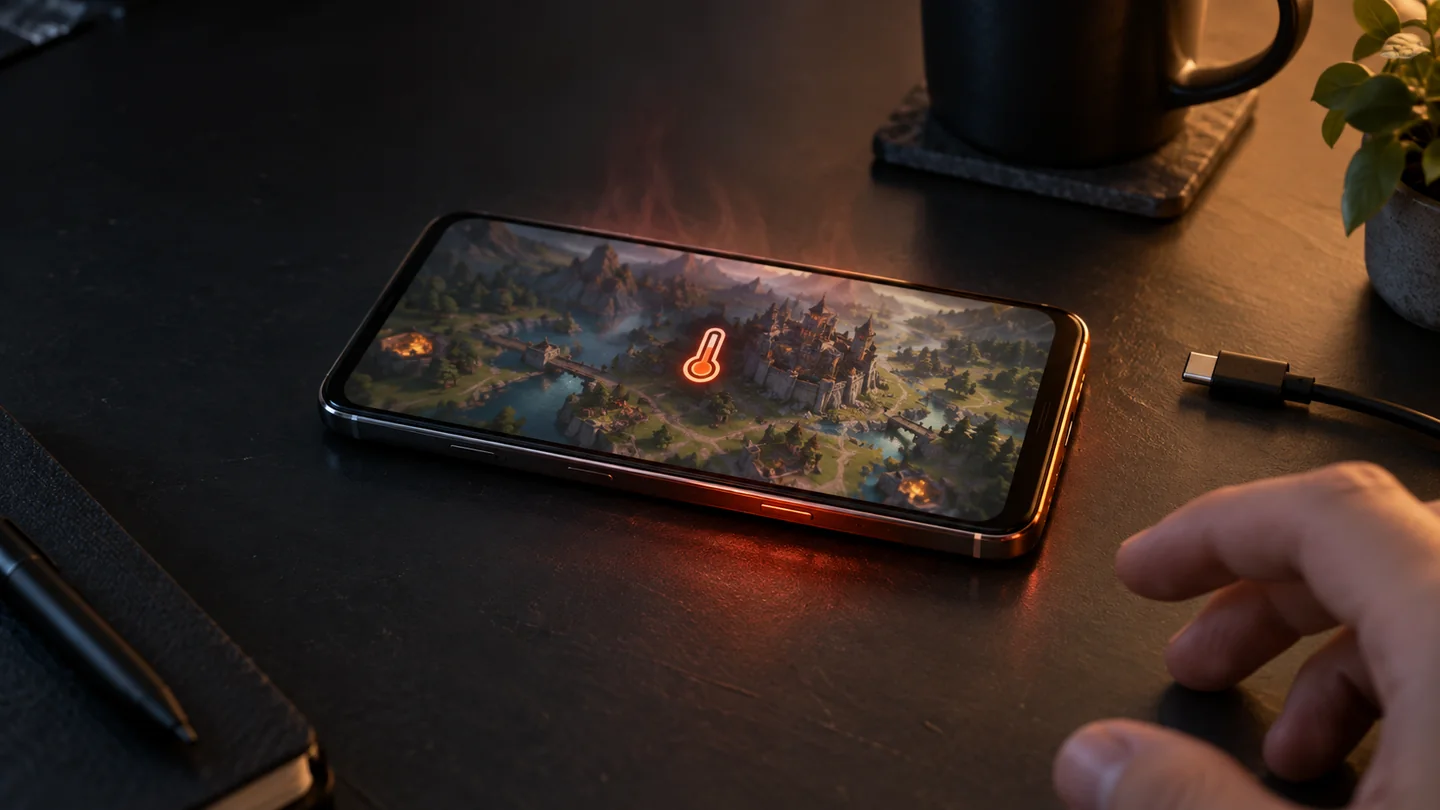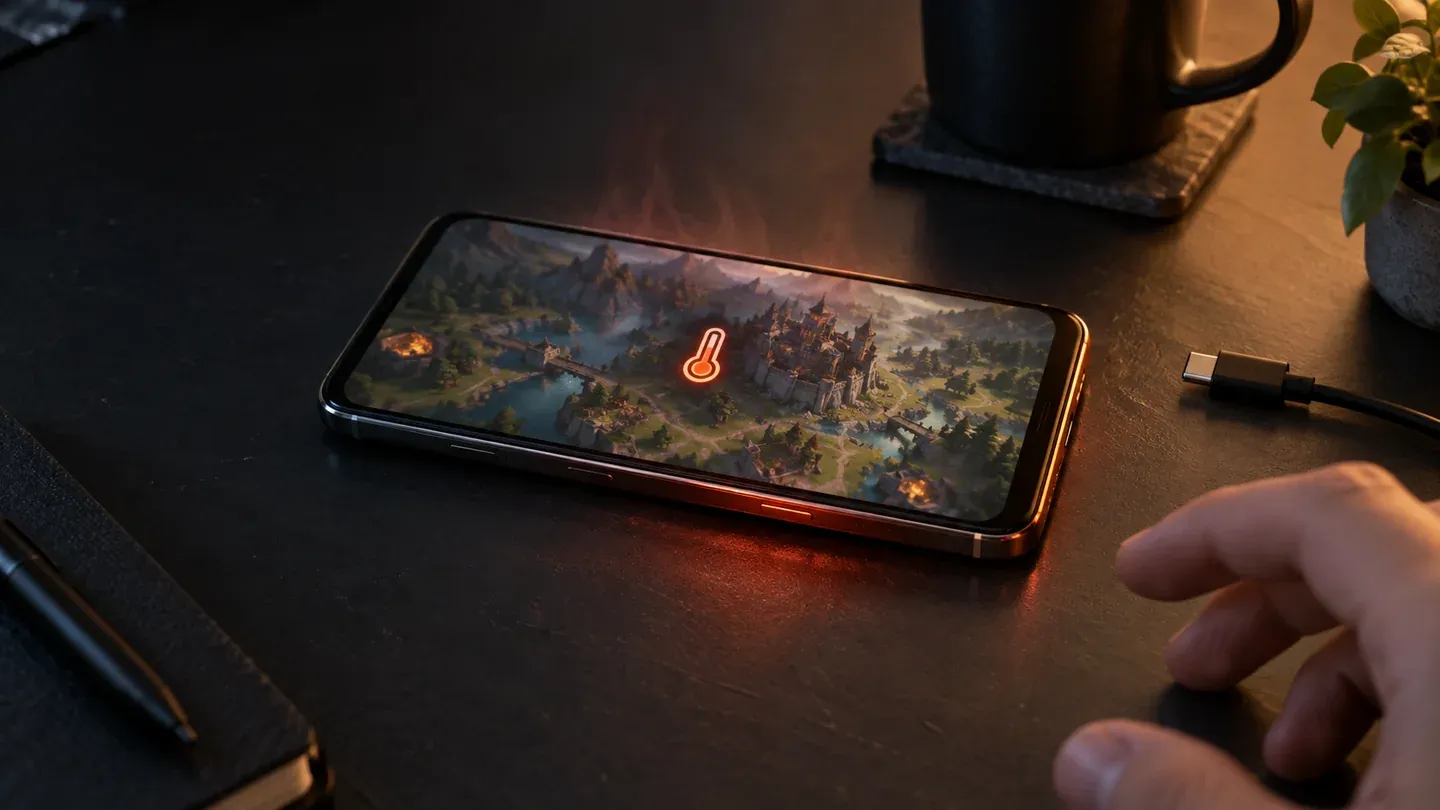
If your phone is only warm and shows no warning or unusual behavior, pause when it becomes uncomfortable and let it cool before continuing. If you see a temperature warning, charging stops, the display dims sharply, performance collapses, or the phone shuts down, stop the game, unplug the phone, move it out of heat and direct sunlight, and leave it unused until it cools.
Graphics-heavy games make the processor, graphics hardware, display, and network radios work at the same time. Some warmth is therefore expected. Apple lists processor-intensive games among normal reasons an iPhone or iPad can feel warmer, while Google’s Pixel guidance similarly says games can make a phone warm.
This is a research-based troubleshooting procedure using manufacturer and Android documentation checked September 12, 2026. Games Ranker did not measure your phone. Follow any warning on the device and the safety guidance for your exact model.
Decide whether it is warm or too hot
Your hand cannot read the phone’s internal sensors, and one surface-temperature number does not apply to every model. Start with the phone’s own behavior.
| What you notice | What it means for this session | What to do |
|---|---|---|
| Warm back or frame, stable brightness and smooth play, no warning | Heavy work may be producing expected heat | Lower the load if it is uncomfortable; keep watching for a change |
| Sudden frame-rate drop, dim display, slow or paused charging | The phone may be limiting work to manage temperature | Pause the game and let the device cool |
| Temperature or cooling warning | The device has detected a thermal condition that needs action | Stop using it and follow the on-screen instructions |
| Automatic shutdown | A protection system has ended the session | Leave it off until cool; seek support if it keeps happening |
Apple documents dimming, slower or stopped charging, weaker cellular service, and reduced frame rates as possible temperature-management behavior. Google says a hot Pixel can reduce processor performance and charging speed, limit radios, enter low-power mode, show a warning, or turn off.
Apple’s published 32–95°F (0–35°C) range describes the ambient environment for using an iPhone or iPad. It is not a universal safe reading for the outside of every gaming phone. Use the device warning and its model-specific documentation instead of treating an app’s battery-temperature number as a pass or fail line.
Cool the phone without shocking it
When the phone shows a warning or becomes too uncomfortable to hold, use a slow, simple cooldown:
- Stop the game. Do not keep playing through a warning or severe frame-rate drop.
- Disconnect the charger. Google’s hot-phone instructions explicitly say to unplug the power source. Apple also pauses charging when temperature moves outside its acceptable range.
- Move the phone to a cooler, shaded, dry place. Take it out of direct sunlight, a hot car, bedding, or another enclosed area.
- Remove the case if you can do so safely. A case can hold heat around the device. Put the phone on a stable surface where removing protection will not create a drop risk.
- Lock the screen or turn the phone off. Apple tells users who see its temperature warning to turn the device off and allow it to cool.
- Wait for normal operation to return. Reconnect power and reopen the game only after the warning is gone and the phone has cooled naturally.
Do not put a hot phone in a refrigerator or freezer, press ice or a frozen pack against it, or pour water on it. Samsung’s phone-heat guidance warns that rapid cooling can cause internal condensation. A fan moving room-temperature air is a gentler option, but a temperature warning still means leaving the phone unused.
Reduce the work during the next session
Change one thing at a time after the phone has cooled. That makes it easier to identify what helps.
Lower the frame-rate target first
Choose 60 frames per second instead of 90 or 120, or 30 instead of 60 when the game offers those choices. Android’s current game guidance says higher refresh rates require more power and produce more heat. It also notes that an unstable high target can waste power without delivering smoother play.
A lower, stable target can feel better than a high target that repeatedly slows as the phone heats. Keep the higher setting only if your device sustains it comfortably.
Reduce graphics and screen brightness
After frame rate, lower resolution, shadows, effects, or the game’s overall quality preset. These names vary by game. Reduce the display brightness to a readable level rather than forcing maximum brightness in a hot or sunny place; Google’s Pixel guidance includes lower brightness among its heat-reduction steps.
For a concrete example, our Tomb Raider mobile settings guide starts with its Performance preset and treats a higher frame-rate override as an optional change to test, not a default every phone should use.
Some publishers say this directly. For Don’t Starve Together on mobile, Playdigious warns that the game can overheat or drain the battery faster even on powerful devices and recommends lowering the frame rate and resolution in its graphics options. We checked that advice on September 23, 2026.
Avoid stacking other heavy tasks
Stop screen recording, large downloads, video calls, navigation, hotspot use, or high-quality streaming during play. These activities can add processor or radio work. If stable Wi-Fi is available, Google specifically recommends it over mobile data for a Pixel that tends to get hot; other Android models can behave differently.
Do not charge through a heat problem
Gaming and charging can produce heat at the same time. Play from the battery when practical, or take a charging break between sessions. Some Galaxy models expose a Pause USB PD charging when gaming option, but Samsung says availability depends on the model and software. Do not assume a similarly named feature exists or works the same way on another phone.
Test whether the game, environment, or phone is the trigger
After a full cooldown, repeat the same short, demanding part of the game under controlled conditions. Stop immediately if the warning returns.
- Start in a cool room, out of direct sunlight, with the charger disconnected.
- Use a lower frame-rate or performance preset.
- Keep screen recording, downloads, calls, and hotspot use off.
- Note when brightness, frame rate, charging, or connectivity changes.
- Compare one other demanding game under the same conditions.
If only one game causes the problem, check its current update notes and support page. Record the phone model, operating-system version, game version, selected graphics mode, whether it was charging, and the point where the slowdown or warning appeared. That gives the developer something more useful than “it gets hot.”
If the app closes or returns to the Home Screen, follow the mobile game crash checklist before clearing data or reinstalling. A crash may have a different trigger, and a destructive reset can remove a local save.
If several demanding games behave the same way, the phone, case, charger, network conditions, or room temperature is a more likely shared factor. That is an inference from the comparison, not a hardware diagnosis. Use the phone maker’s battery or device diagnostics where available; Pixel 6 and later, for example, expose a Phone is very warm check under Battery diagnostics.
Know when settings are no longer the answer
Contact the phone maker or an authorized repair provider when temperature warnings or shutdowns keep returning after the device cools, especially during light use or while idle. Repeated unexpected shutdowns and unusually fast battery drain can also justify a battery check.
Stop using and charging the phone if the screen or back is lifting, the battery area is swelling, the device smokes, or it gives off a burning smell. Do not press a lifted screen back into place or try to remove a built-in battery yourself.
For ordinary gaming warmth, the useful order is simpler: reduce frame rate, lower graphics and brightness, remove simultaneous workloads, avoid charging during the session, and play somewhere cooler. If the phone intervenes with a warning or shutdown, let its protection system make the decision and end the session.
Games Ranker’s review methodology treats performance and mobile fit as separate evidence categories because a good game can still be a poor match for a particular phone. Browse the mobile game catalogue for dated compatibility and performance notes, then test demanding games on your own hardware while any free trial or refund route is still available.
Sources
- Apple: iPhone and iPad temperature management
- Apple: Charging On Hold notification
- Google: keep a Pixel phone from getting too hot
- Android Developers: refresh rates, power, and heat
- Android Developers: dynamic thermal performance
- Samsung: Gaming Hub performance modes
- Samsung: safe and unsafe ways to cool a hot phone
- Associated Press: manufacturer heat guidance
- Playdigious: Don't Starve Together overheating help