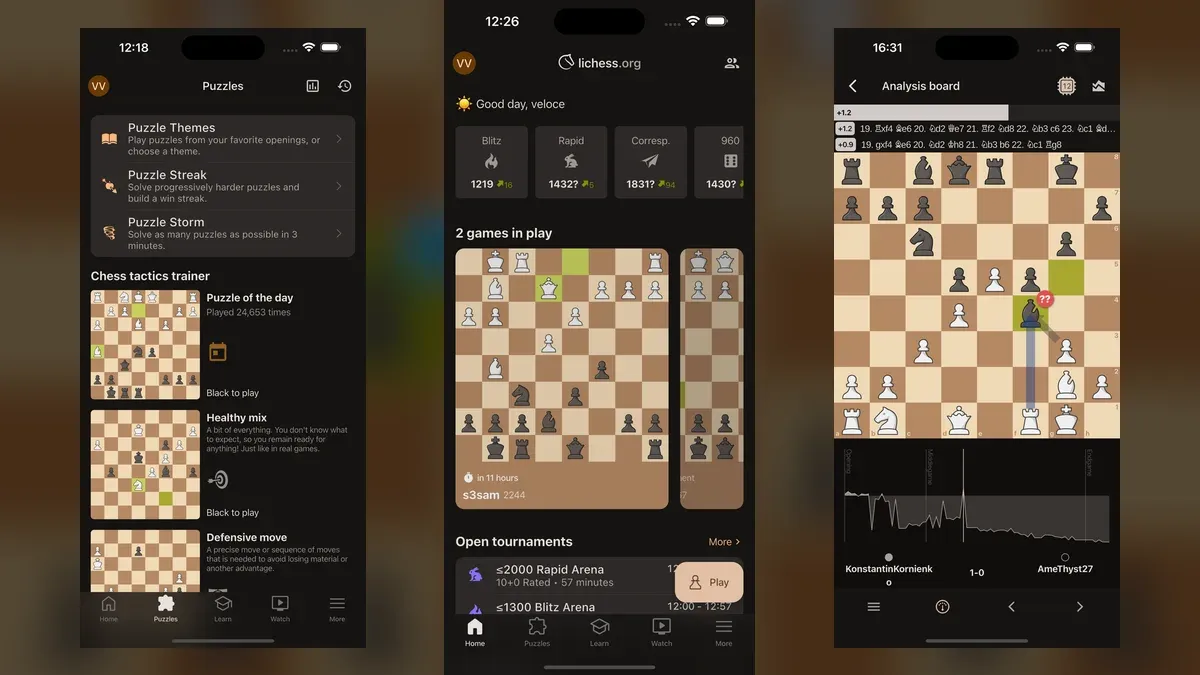
Yes, the current Lichess app can be used offline on Android and iPhone, but only for specific modes. Version 0.28.4 can run a local computer game against Stockfish or Maia, solve puzzles already stored on the device, and host a two-player over-the-board game. Live opponents, friend challenges, online bots, tournaments, Puzzle Storm, Puzzle Streak, broadcasts, messages, and server analysis still need internet.
This guide covers the rebuilt Lichess app with Android package org.lichess.mobileV2 and App Store ID 1662361230. It was checked against the official stores, release notes, and tagged 0.28.4 source on September 22, 2026. Games Ranker has not repeated the procedure on a physical device, so perform the airplane-mode check below before depending on it during a trip. For the broader buying decision, see our Lichess mobile review.
Update the right Lichess app first
Open the app’s store page and confirm that it is the current rebuilt edition. On iPhone, the US App Store lists version 0.28.4. On Android, use the current Google Play listing for org.lichess.mobileV2. A local store may show a later build or roll an update out on a different schedule.
This identity check matters because older advice can describe the legacy Lichess app. When Lichess declared the new app stable in August 2025, its own official release announcement said offline computer play was still missing. That statement was accurate then but is no longer the current answer. The 0.28.4 release added the offline Maia opponent and offline time controls, while Lichess’s August 2026 changelog also records Maia as a new offline option.
If Play against computer is missing, or the setup screen has no opponent and time-control choices, update the current edition before troubleshooting anything else.
Start an offline computer game
The computer route is not the same as challenging an online bot. The current play-menu source leaves the local computer item enabled when server-backed choices are disabled.
- Open Lichess and tap the large Play button on the Home screen.
- Tap Play against computer.
- Tap Opponent to choose Stockfish or Maia.
- Choose Unlimited or Clock under Time control. If you select Clock, set the minutes per side and increment.
- Choose the variant and whether you want White, Black, or a random color.
- Turn on Practice mode if you want feedback after moves. Practice mode removes the clock. Leave it off for a normal uninterrupted game.
- Use Casual if you want local takebacks and hints, then tap Play.
The tagged offline-game setup source is the basis for those controls. It also shows that the current game is saved locally when you leave and loaded again when you return, provided play has started. Opening New game replaces that setup, so resume the board instead if you intend to continue.
Choose Stockfish or Maia for the right reason
Stockfish offers levels 1 through 12 and supports standard chess plus the app’s listed variants. Maia is intended to choose moves more like people in a particular rating band, rather than acting as a simple strongest-to-weakest engine slider. In version 0.28.4, Maia supports standard chess and games started from a position; choosing another variant switches the opponent back to Stockfish.
There is one important travel detail that the release headline does not explain: Maia 1500 ships inside the app, but every other Maia rating is an additional download. The tagged opponent definitions list Maia 1500 as the bundled network. The other choices range from Maia 1100 to 2200 and are about 1.1 to 1.3 MB each.
When you select a non-bundled Maia rating, watch the cloud indicator. A download icon and size mean that network is not ready; a progress ring means it is downloading; a cloud with a check means it is stored. If the download fails, the app falls back to Maia 1500. For the least preparation, use Stockfish or Maia 1500.
Local engine work can consume battery and make a phone warm, especially at stronger settings or during long analysis. Our guide to why phones get hot while gaming separates normal load from warning signs. Do not cover the phone or charge it in a hot place just to keep an engine session running.
Preload Lichess puzzles for offline use
Regular tactics can work offline after the app stores them. The current Google Play description explicitly lists themed puzzles as available online or offline, and Lichess’s official mobile announcement makes the same distinction. Timed server modes are different: Puzzle Storm and Puzzle Streak are disabled when the app is offline.
For a predictable Healthy mix queue while signed in:
- Connect to the internet and sign in to Lichess.
- Open the Puzzles tab.
- Scroll to Healthy mix and open a puzzle.
- Tap the gear icon on the puzzle screen.
- Open Offline puzzles and choose 100, 150, 200, 250, or 300.
- Keep the app connected while the progress indicator fills the local queue.
- Return to Puzzles and open Healthy mix once more before running the offline test.
The 100-to-300 control is limited to signed-in users and the mixed puzzle queue. Those constraints come directly from the tagged puzzle settings implementation. Other saved themes use smaller fixed queues, and anonymous users do not see the configurable count.
Selecting 300 does not mean one giant file arrives instantly. The source fills the queue in batches and keeps what has already downloaded if the connection fails. Wait for the setting’s progress indicator to finish rather than assuming that changing the number completed the download. The extra files are small compared with most games, but the same principle applies as in our explanation of download size versus installed size: a setting can request content that is delivered after installation.
If the offline Puzzles tab says No puzzles available, please go online to fetch them, reconnect, open the intended puzzle mix or theme, and let its queue fill. The daily puzzle, Puzzle Storm, Puzzle Streak, dashboard, history, and other server-fed views should not be treated as offline puzzle modes.
Know what each offline route actually does
| What you want to do | Offline in 0.28.4? | Preparation or limit |
|---|---|---|
| Play Stockfish locally | Yes | Stockfish is packaged with the app; choose Play against computer |
| Play Maia 1500 locally | Yes | Maia 1500 is bundled |
| Play another Maia rating | Yes, after download | Select that rating while connected and wait for the cloud-check indicator |
| Solve ordinary stored puzzles | Yes | Open/fill the intended queue before disconnecting |
| Play a friend on the same device | Yes | Use Play > Over the board |
| Play live, correspondence, a friend challenge, or an online bot | No for starting/syncing play | These use Lichess servers |
| Use Puzzle Storm or Puzzle Streak | No | Both are disabled offline in the current app |
| Request server analysis or use the opening explorer | No | Local Stockfish analysis is separate; server data requires a connection |
| Watch broadcasts, Lichess TV, or streamers | No | These are live network features |
That boundary is why the answer is “partly,” not simply “yes.” An offline engine game is local chess against software on your phone. It does not create a Lichess server game, affect your online rating, or become a friend challenge when you reconnect.
Test the exact mode before you travel
Do not stop after seeing the Home screen load. Use the same launch-play-resume check from our broader offline mobile-game checklist:
- While connected, finish any non-bundled Maia or puzzle downloads you need.
- Close Lichess completely.
- Turn on airplane mode, then separately turn Wi-Fi off. Phones can remember that Wi-Fi should remain on in airplane mode.
- Reopen Lichess from a cold start.
- Start a new computer game with the prepared opponent, make several moves, leave the board, and reopen it.
- Open Puzzles and solve at least one item from the queue you prepared.
- Restart the phone while still disconnected and repeat the checks if the mode will matter on a long trip.
Record the app version and which opponent or puzzle queue passed. “Lichess opened” is not the same result as “Maia 1700 finished downloading, a game resumed, and Healthy mix served a stored puzzle.” If you update the app, clear its storage, reinstall it, or choose a different Maia rating, repeat the test.
For travel, keep Maia 1500 or Stockfish as a fallback even if another Maia network worked at home. Also keep at least one second game that passed its own offline check. You can browse our mobile game catalogue for alternatives, but verify the mode rather than inferring offline support from a single-player label.
Fix the common offline failures
The app opens the wrong computer mode
Use Play > Play against computer, not a home shortcut or bot profile that creates an online game. If the screen asks to seek an opponent or shows a server challenge, back out and use the local route.
A Maia rating changes back to 1500
That rating’s network was not available on the device. Reconnect, choose it again, and wait for the download to finish. If it still fails, use bundled Maia 1500 or Stockfish. Clearing app data can remove downloaded networks even though the app remains installed.
The Offline puzzles setting is missing
Check all three conditions: you are signed in, you opened a Healthy mix puzzle, and the current app is updated. The count control does not appear for anonymous sessions or every puzzle theme. You can still let other themes cache their own smaller queue by opening them online before the trip.
Online tools are greyed out
That is expected while disconnected. The current app checks connectivity and disables server-backed choices. Reconnect for matchmaking, tournaments, messages, opening data, broadcasts, and server analysis; do not reinstall the app merely because those controls are unavailable offline.
This is a guide to availability, not a new Games Ranker play test or score adjustment. Our ranking methodology explains why a documented feature and a hands-on performance observation are different kinds of evidence. The steps above are deliberately tied to version 0.28.4 so readers can tell when a later interface needs a fresh check.
Frequently asked questions
Do you need a Lichess account to play against the computer offline?
No. The local Play against computer route is available without signing in. An account is required to choose and prefill the larger 100-to-300 Healthy mix puzzle queue, although the app can still cache ordinary puzzles for anonymous use.
Which Maia opponent works without a separate download?
Maia 1500 is bundled with Lichess 0.28.4. Maia 1100 through 1400, 1600 through 1900, and 2200 are downloaded on demand, so choose them while connected and wait for the cloud-done indicator before going offline.
Can two people play Lichess together without internet?
Yes. Tap Play, then Over the board to share one phone or tablet as a local chessboard. That is separate from friend challenges, which use Lichess servers and require a connection.
Will an offline computer game change your Lichess rating?
No. The game runs locally against the on-device engine rather than as a rated server game. Its Casual setting controls local takebacks and hints; it does not turn the game into an online rated match.
Sources
- Lichess Mobile version 0.28.4 release
- Lichess August 2026 changelog
- Lichess Mobile official release announcement
- US App Store listing and version history
- US Google Play listing
- Tagged play menu source
- Tagged offline computer screen source
- Tagged computer opponent source
- Tagged puzzle settings source
- Lichess Mobile copying notice