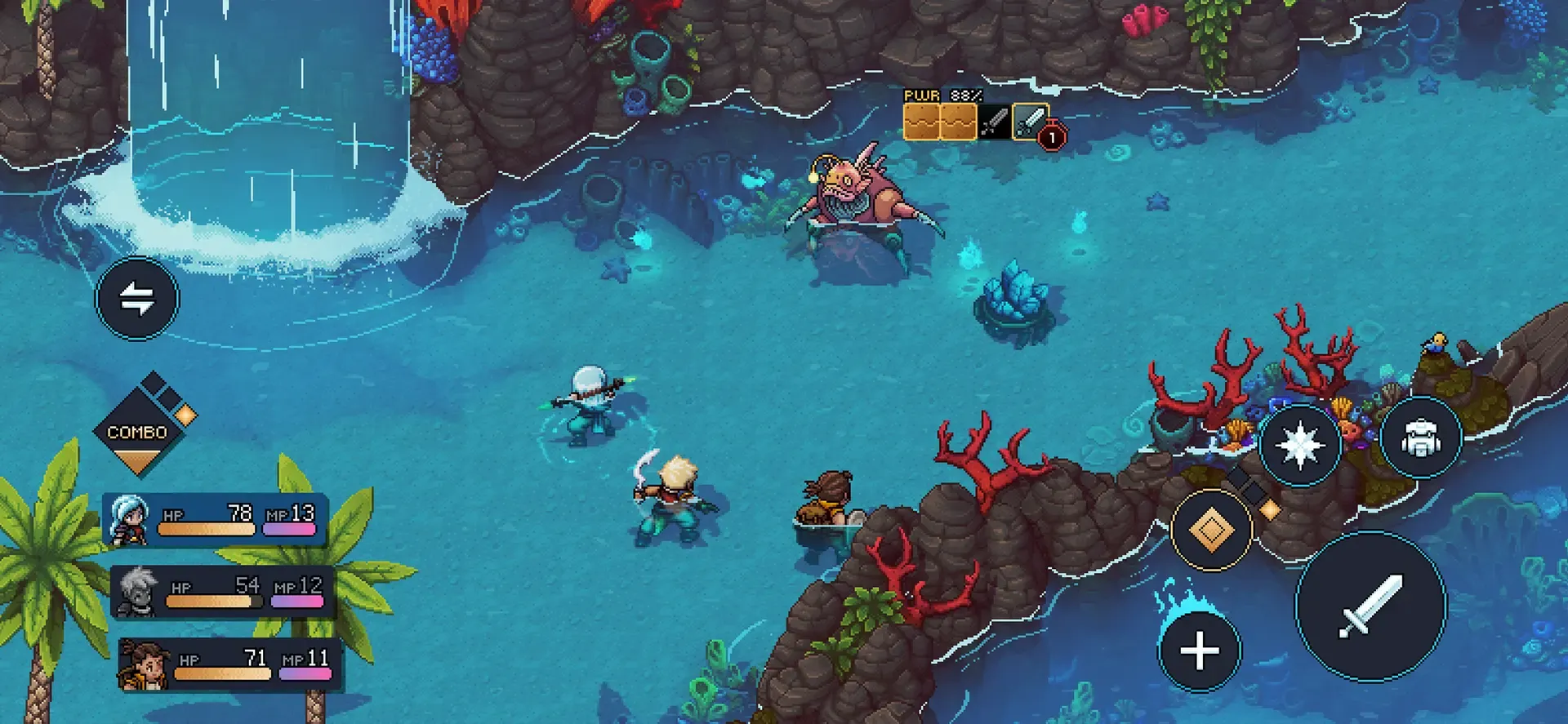
The simplest way to improve at Sea of Stars on mobile is to separate timing from strategy. First, enable clear timing feedback and learn to tap when an animation connects. Then, before every turn, read the enemy’s lock icons and countdown. Use basic attacks to rebuild MP and create Live Mana; spend skills, boosts, and combos only when their damage types solve the immediate problem.
This is a source-reviewed guide, not a claim that Games Ranker played the game. It was checked on September 4, 2026 against the Android/iOS support information and mobile version 3.0.60158. The current US App Store listing describes the same timed-hit, boost, combo, and lock systems on iPhone and iPad, while the publisher’s patch notes cover both mobile platforms.
Start with feedback, not faster tapping
A timed hit is not a rapid-tap test. For an early normal attack, tap the action control as the weapon connects with the enemy. A successful input can add another strike as well as more damage. For defense, tap as the enemy’s attack is about to connect with your character. Every attack has a different wind-up, so watching the point of contact is more dependable than memorizing one universal beat. The early combat walkthrough from Gamer Guides documents those offensive and defensive windows.
Turn on Sequent Flare in the Relics menu while learning. It gives a clear star effect after a successful timed hit or block; it does not perform the input for you. Mobile reviewer Charles Hartford found that stronger visual confirmation especially useful on a phone-sized display in his iPad Pro assessment.
Use that signal as a training tool:
- Choose one normal attack you use often.
- Watch the character, not your thumb or the touchscreen button.
- Tap once as the attack makes contact.
- If no confirmation appears, adjust slightly earlier or later on the next use.
- Repeat with one enemy attack before trying to learn every animation.
Do not mash the action area after missing. Extra taps make it harder to tell which input was early or late. One deliberate tap gives you useful feedback.
Make touch input easier to read
Sea of Stars uses an interface redesigned for mobile rather than placing a complete console controller over the screen. The official mobile page confirms full touch control, and the App Store version history records the option to lock the movement stick. Combat inputs are simpler than movement because the game is turn-based, but the timing window still rewards a stable grip.
For more consistent touch timing:
- Keep the action-side thumb resting near the control instead of hovering above the center of the display.
- Tap with the pad of the thumb rather than its edge if light presses are not registering.
- Keep the phone supported with both hands during bosses; a shifting grip changes where the thumb lands.
- Clean the screen if a drag or tap starts breaking into inconsistent input.
- Separate a missed touch from a missed timing window by checking whether the button visibly responded.
That last distinction matters. Hartford reported needing a short adjustment before his taps registered consistently. Brian Emanuel’s Cubed3 iOS review found the interface readable and traversal natural, but noted occasional touch imprecision and fatigue during longer sessions. If the game acknowledges the press but the timing marker says it was wrong, practice the animation. If presses regularly fail to register, change your grip or test a controller.
Read locks before choosing an attack
Locks turn enemy special attacks into small damage-type puzzles. The icons above an enemy show which kinds of damage are needed; the nearby countdown shows how many party turns remain before the action happens. Match your move’s damage icons to those locks rather than choosing the attack with the largest-looking number.
A useful order is:
- Read the countdown. An enemy acting sooner deserves attention first.
- Count the damage icons. Note repeated sword, blunt, sun, moon, or other symbols.
- Check who can supply them. Include skills, combos, and a Live Mana boost—not only normal attacks.
- Estimate the number of hits. A successful timed normal attack may provide the additional strike needed for a repeated physical lock.
- Choose a fallback. If you cannot clear everything, remove the locks you can and prepare to heal or defend.
Breaking every lock cancels the prepared move. Removing only part of a lock group still weakens it, so an imperfect solution can be worthwhile. The Gamer Guides tutorial demonstrates both outcomes during the opening lessons.
Use basic attacks to rebuild the next solution
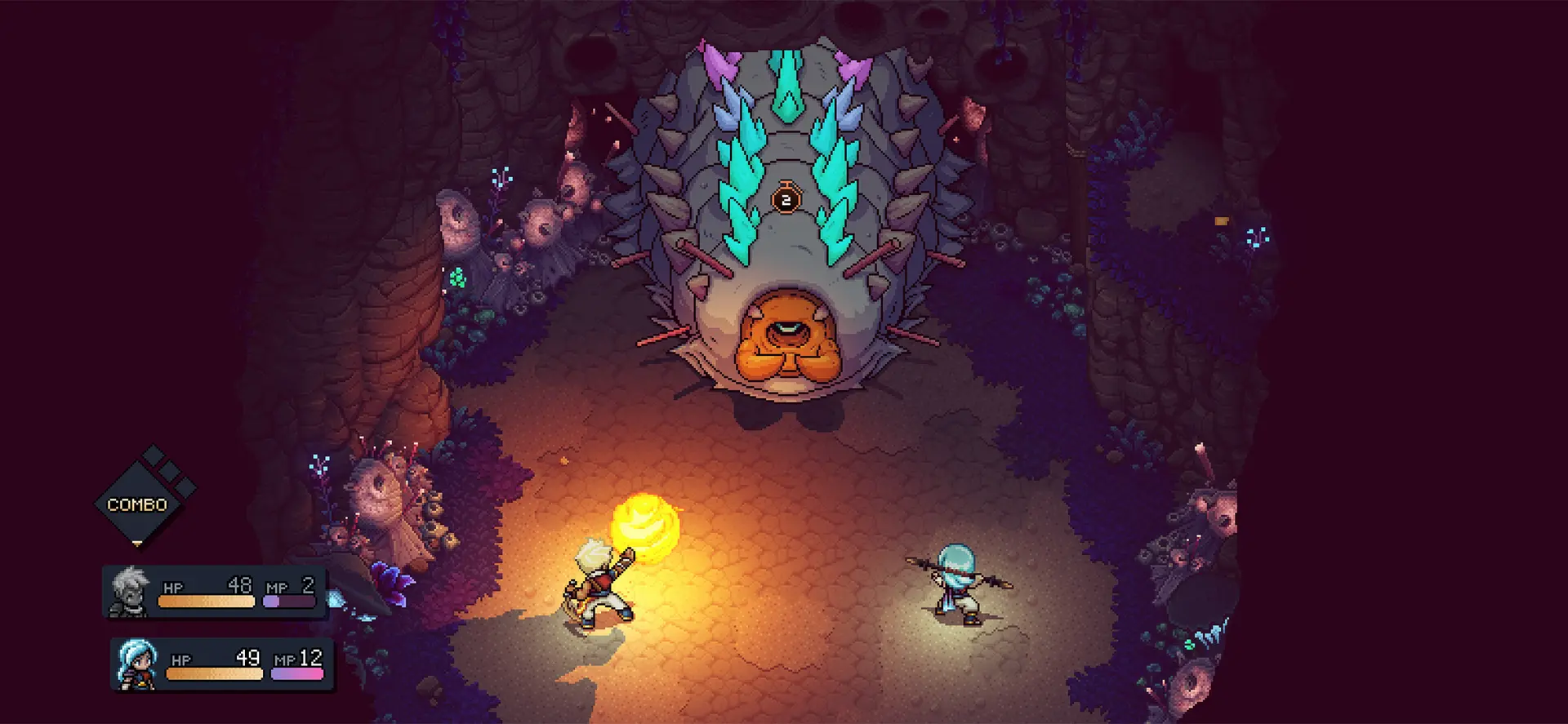
MP, Live Mana, and locks work as one loop. According to the combat breakdown by Gamepur, a basic attack restores 3 MP. A regular attack that is not already boosted also drops Live Mana onto the field. A character can absorb up to three charges to strengthen an action and add the character’s magic damage to a physical attack.
That creates a practical rhythm:
- Use a skill when its damage type breaks an urgent lock.
- Use an unboosted normal attack when no lock is urgent and MP is low.
- Leave Live Mana available until you know which elemental lock will appear.
- Boost a normal attack when you need physical and elemental damage in the same turn.
- Avoid spending MP only because the bar is full; save enough coverage for the next lock group.
The strongest move is not always the move that prevents the most damage. Canceling an enemy special attack can be more valuable than maximizing one character’s turn.
Treat timed hits as extra lock tools
Timed inputs improve damage, but their strategic value is easier to understand through locks. In the opening lessons, a properly timed normal attack adds a second physical hit. If an enemy needs two matching physical locks removed, that one timing input can save an entire party turn.
This does not mean every skill produces the same number of extra hits. Skills, projectiles, and combo attacks have their own timing patterns. Learn the normal attacks first because they are repeatable, refill MP, and show the connection between timing and lock removal without consuming a resource.
Blocks are different. They reduce incoming damage but do not solve the lock before the enemy acts. If you have a choice between practicing an uncertain block and canceling the attack through locks, solve the locks first. Practice defensive timing when the attack cannot be stopped or when an ordinary enemy action is already coming.
Switch to a controller for the right reason
A controller is useful when the strategy is correct but physical taps remain inconsistent. Playdigious confirms that MFi-certified controllers work on iOS. Android controllers are supported, but the publisher cannot guarantee every device-and-controller combination.
Use touch controls when you want portability, are learning regular encounters, or can read the feedback clearly. Consider a controller when:
- repeated presses do not register despite a stable grip;
- long sessions make your hands tired;
- a boss uses several unfamiliar timing patterns;
- you already know the animation but glass input remains inconsistent.
Do not expect a controller to fix the lock puzzle. It changes the physical input, not the required damage types, countdown, MP, or Live Mana decision.
Follow this five-step combat loop
For most encounters, use the same short checklist:
- Inspect every enemy countdown before choosing a character.
- Match available damage types to the most urgent locks.
- Use a basic attack if you need MP or Live Mana and no urgent lock requires a skill.
- Watch the animation and make one deliberate timed input.
- Recheck the battlefield instead of repeating the previous move automatically.
Start with touch controls and Sequent Flare. Move to a controller only when the screen input—not the combat decision—is the recurring problem. The full Games Ranker Sea of Stars review covers current device warnings, price, save limits, and the mobile edition’s other tradeoffs. Our scoring methodology explains why control comfort and performance are evaluated separately from the quality of the combat system itself.
Frequently asked questions
When should I tap for a timed hit in Sea of Stars mobile?
Tap the action control as the attack connects with the target, not when the wind-up begins. Each attack and skill has its own animation, so enable the game's timing feedback and learn one move at a time instead of using one rhythm for every character.
Do I need to land every timed hit and block?
No. The battle continues after a missed input, but successful timing increases attack effectiveness, reduces incoming damage, and can add hits that help remove enemy locks. Prioritize consistent timing on the moves and enemy attacks you see most often.
Why did my attack fail to break an enemy lock?
A lock only responds to its matching damage icon, and some lock groups require more than one hit of the same type. Check the symbols and turn countdown before acting; a visually strong attack is not useful for that lock unless its damage types match.
Can I use a controller with Sea of Stars on Android or iOS?
Yes. Playdigious confirms support for MFi-certified controllers on iPhone and iPad. Android controller support is included, but the publisher cannot guarantee every phone-and-controller combination, so test your own hardware before relying on it.
Does this guide apply to both Android and iOS?
Yes. The combat system and mobile touch interface covered here apply to the Android and iOS main campaign. This guide was checked on September 4, 2026 against the current mobile support information and version 3.0.60158 patch notes.
Sources
- Playdigious Sea of Stars mobile page
- Playdigious Sea of Stars press kit
- US Apple App Store listing
- Playdigious mobile update 3.0.60158
- Playdigious controller support guidance
- Sabotage Studio Dawn of Equinox combat update
- But Why Tho? mobile review by Charles Hartford
- Cubed3 iOS review by Brian Emanuel
- Gamepur combat basics by Cande Maldonado
- Gamer Guides combat tutorial by Jarrod Garripoli