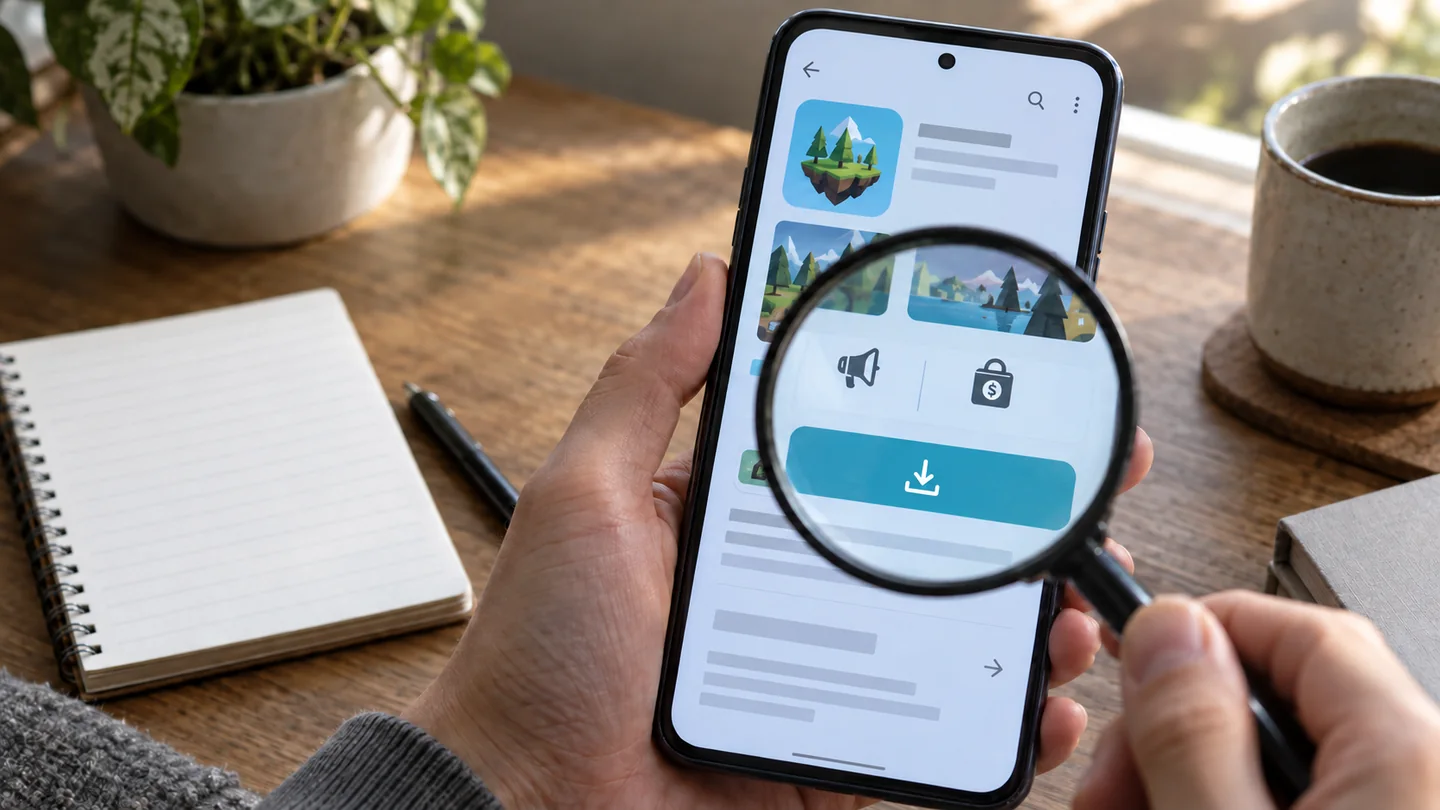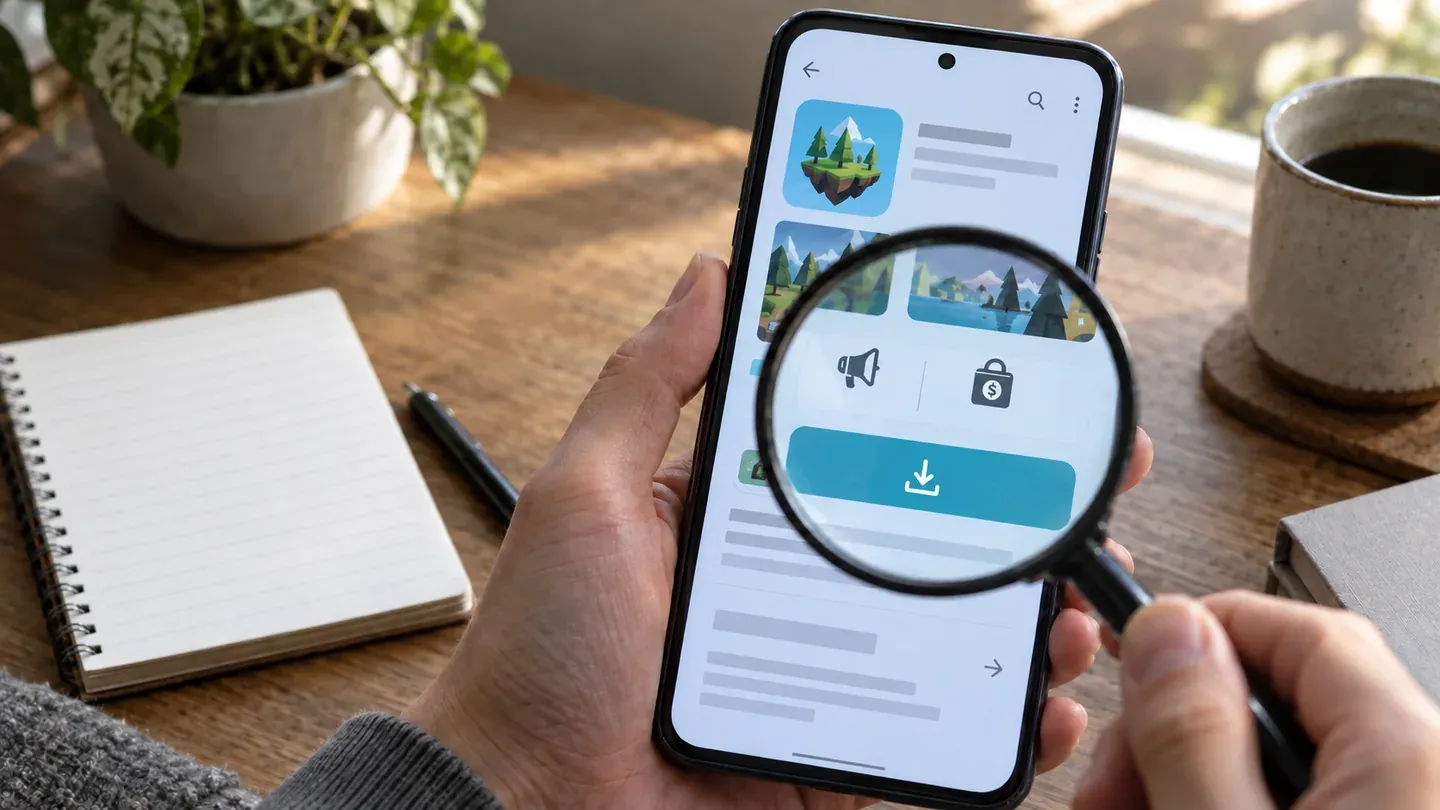
On Google Play, look beside the Install or price button for “Contains ads” and “In-app purchases.” On an iPhone or iPad, look for “In-App Purchases” near Get or the price, then open the age-rating details and check whether Advertising appears under Contains. Those labels tell you that a money-making feature exists. They do not tell you how often an ad interrupts play, whether purchases affect difficulty, or what the complete game will cost.
Use the store page as the first check, then read the purchase names, recent reviews, and the developer’s own description. We checked the current store guidance and the US examples below on September 14, 2026. Labels, prices, and their position can vary with your country, device, store version, and later game updates.
Check four different kinds of cost
A Free or Get button answers only the first question: what does it cost to install? Treat the rest separately.
| Question | Useful store clue | What still needs checking |
|---|---|---|
| Does installation cost money? | A price instead of Install or Get | Whether another edition or subscription includes the game |
| Does the game show ads? | “Contains ads” on Google Play; Advertising in current App Store age-rating details when declared | Forced, banner, promotional, and optional rewarded ads are not distinguished |
| Can I spend money after installing? | “In-app purchases” or “In-App Purchases” | Whether the items are cosmetic, consumable, subscriptions, or a full-game unlock |
| What might the whole game cost? | Named purchases and listed prices | Which purchases are necessary, repeatable, time-limited, or available only inside the game |
This distinction also prevents a common mistake: a free trial with one permanent full-game unlock is not the same proposition as a game selling repeatable currency packs, even though both receive an in-app-purchase label.
Read the Google Play labels first
Google tells developers to declare whether an app contains ads. If it does, Google Play displays Contains ads on the listing. The declaration covers common formats such as third-party ad SDKs, banners, native ads, and interstitials. It can also cover promotion for the developer’s other products when that promotion interrupts or appears inside play.
The label deliberately does not cover every commercial feature. Google says paid product placement and offers for purchases or upgrades are separate from the ads declaration. That is why you must also look for In-app purchases beside Install or the price. Google’s consumer instructions confirm where that notice appears.
Interpret the two labels literally:
- Contains ads means at least one covered advertising format is present. It does not describe frequency or placement.
- In-app purchases means the game can sell something after installation. It does not mean spending is required.
- Both labels mean the game uses both systems. An ad-removal payment may exist, but the labels do not promise one.
- Neither label is a useful positive signal, especially when the developer also states that the game has no ads or purchases. Recheck after major updates because the developer controls the declaration and Google may verify it.
Do not use the Data safety panel as a replacement for this check. That panel describes declared data collection and sharing. Advertising-related data can help you ask better privacy questions, but it does not explain how an ad affects a play session.
On iPhone, open both purchases and age rating
Apple places “In-App Purchases” near the price or Get button. Farther down the product page, the In-App Purchases section can show item names and prices. Names such as Full Game, Remove Ads, Monthly Pass, Coins, or Starter Pack reveal much more than the general label.
Apple separates purchase types in a way that helps you estimate the commitment:
- a non-consumable can be a permanent full-game unlock, ad removal, or extra level pack;
- a consumable can be currency, hints, or health that may be bought repeatedly;
- a subscription charges for access over a stated period and usually renews until canceled.
The visible list still needs care. Apple lets developers promote selected purchases on a product page, so a short list is not proof that you have seen every offer or its future price.
For ads, expand the Age Rating area. Apple’s current rating questionnaire includes Advertising as a declared capability, and current US web listings can show it under Contains. Apple explains that these descriptors come from the developer’s age-rating answers. Presentation can differ on devices running older operating systems and in regions with separate rating rules.
Three store pages show why one label is not enough
These current Games Ranker catalogue examples use three different models. They are comparisons of US store disclosures, not fresh Games Ranker play tests.
| Game | Android disclosure | iPhone or iPad disclosure | What the combination tells you |
|---|---|---|---|
| Card Crawl 2 | Free install, Contains ads, and In-app purchases | Free with In-App Purchases; age rating lists Advertising | Free entry with both advertising and optional spending |
| Unciv | Free install; no ad or purchase labels, and the description says no ads | No official iOS edition in our US baseline | Free does not automatically mean ad-supported |
| Mindustry | Free install with no advertised ads or purchases | $1.99 paid download with no purchase list | The same game can charge differently by platform without adding a recurring store economy |
Card Crawl 2’s US App Store page makes the purchase check concrete. It lists a $0.99 pass and chest pack, two pouch upgrades, a starter pack, and a booster pack up to $8.99. Those names establish several ways to spend; they do not establish that every purchase is needed. Our Card Crawl 2 unlock guide examines how its gold cap, chests, ads, and optional purchases interact.
Unciv’s Google Play description explicitly says “no ads” and “free forever,” matching the absence of store monetization labels in our check. Mindustry’s Android listing also showed neither label, while its US App Store page charged $1.99. Checking only one platform would miss that difference.
Store labels cannot judge whether the model is fair
The difficult question is rarely “Can I spend money?” It is “What happens if I do not?” A store badge cannot answer that.
Look for recent reviews that describe a specific mechanic: an interstitial after every level, an energy timer, currency needed for upgrades, a paid pass, or an ad-removal option that failed after an update. Give more weight to reports that name the current version and platform. A one-line complaint about “greed” is less useful than a description you can compare with the purchase list.
Then read the developer’s description, support page, or monetization explanation. Compare its wording with the store disclosures. A claim that purchases are optional can be true while the free route is still slow; a Contains ads label can be accurate even if ads appear only when the player chooses a reward. Record uncertainty instead of turning either statement into a guarantee.
Our Android and iPhone price comparison shows another limit: the same mobile edition can have a different entry price or unlock structure on each store. Always inspect the platform and country where you will actually play.
Use this checklist before downloading
- Confirm the exact game and publisher. Similar titles, subscription editions, demos, and older releases can have different payment models.
- Read the install button. Price, Get, and Install describe entry cost only.
- Record both monetization labels. On Google Play, check ads and purchases separately. On the App Store, check purchases and expand the age-rating details.
- Open the purchase list. Sort each visible item into permanent unlock, consumable, subscription, or unclear.
- Search the page for decisive words. Full game, remove ads, pass, gems, coins, energy, and subscription answer different questions.
- Read recent version-specific reviews. Look for the type and timing of ads, paywalls, and whether a promised ad-removal purchase works.
- Compare the other platform if you own both. Price and payment structure may differ even when the game name is identical.
- Test before committing when installation is free. Open the store inside the game, inspect the real offers, and play far enough to see how ads enter the loop. Do not assume the opening minutes represent the whole game.
If another person uses the device, turn on a payment safeguard before testing. Google Play purchase verification can require confirmation for purchases. On iPhone and iPad, Screen Time can restrict App Store and in-app purchases.
The safest decision is based on all four parts: installation price, advertising, purchases, and the effect of refusing both ads and purchases. Store labels start that investigation; the item list and current play reports finish it.
Sources
- Google Play Console: declaring ads
- Google Play: finding in-app purchases
- Apple: in-app purchase types and store labels
- Apple: current age-rating declarations
- Apple: App Store product-page purchases
- Card Crawl 2: US App Store listing
- Card Crawl 2: US Google Play listing
- Unciv: US Google Play listing
- Mindustry: US Google Play listing
- Mindustry: US App Store listing
- Google Play: purchase verification
- Apple: restrict App Store purchases