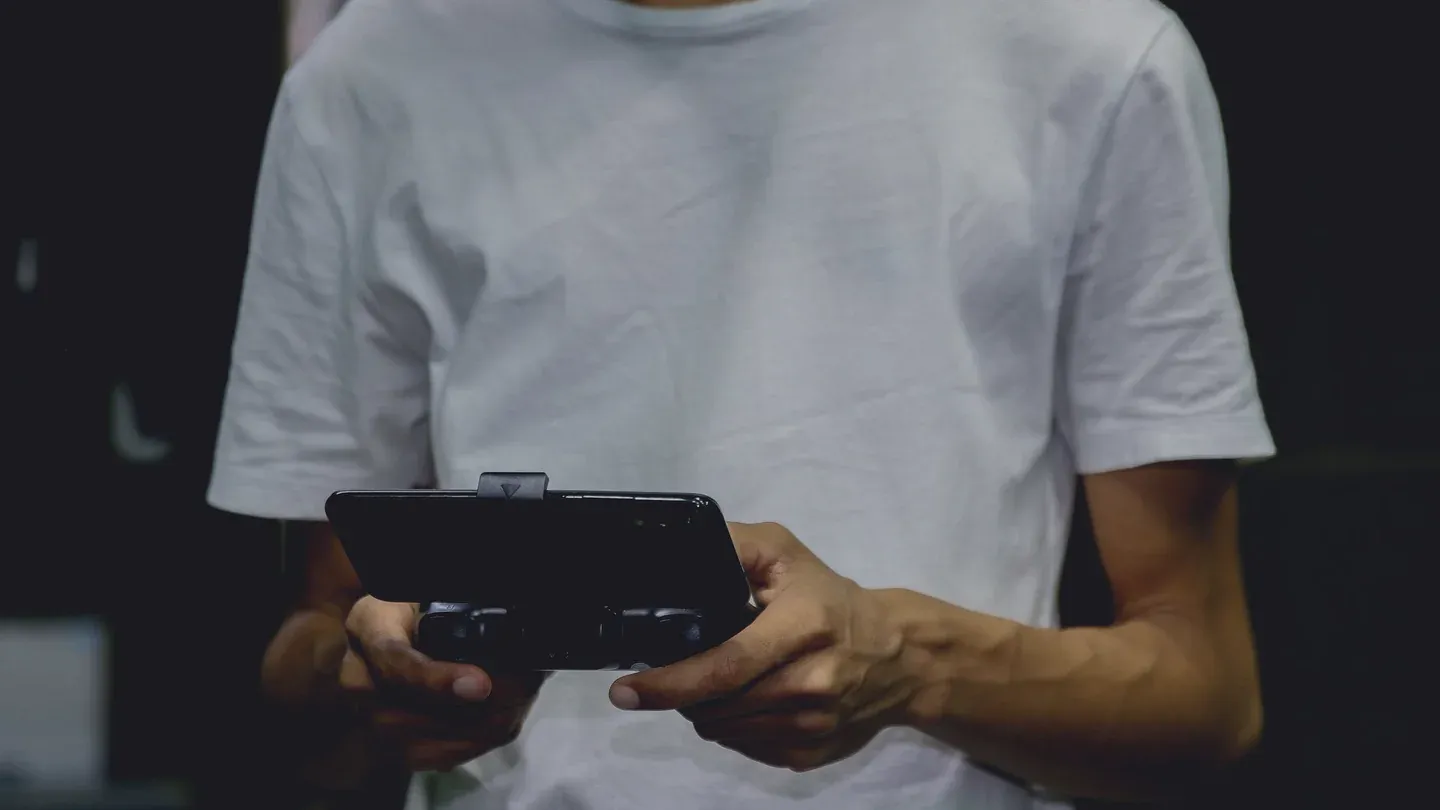
Before buying, confirm that the controller works with your phone and that the exact mobile game supports it. Then check whether that support covers the actions you need: movement, menus, combat, or anything else that would make touch controls difficult for you.
A successful Bluetooth connection answers only the phone question. Android’s developer documentation describes controller input as something a game implements; connecting hardware does not add that implementation to every game.
This is a research-based buying checklist using official documentation checked September 11, 2026. Games Ranker has not tested your phone, controller, or game. It is intended for choosing an accessory or checking a game you already own, with no need to buy another controller just to investigate support.
Start with the game’s store page
Open the listing for the exact edition on the device you intend to use. Check the publisher and whether it is the standalone, subscription, or other edition. Evidence about a console release or a different mobile app is not enough.
| Where you are looking | Useful evidence | What still needs checking |
|---|---|---|
| App Store on iPhone or iPad | Controller icon on the game’s product page | Supported controller models and any touch-only actions |
| Google Play on Android | Gamepad tag on the app detail page, where shown | Your phone, connection type, and the publisher’s support notes |
| Controller maker’s game directory | A listing filtered to your platform and service | Whether it refers to the installed mobile game or a streamed version |
Apple tells readers to look for the controller icon. Google documents a Gamepad tag and a controller search filter; its guidance says developers must declare support for their games to use that label.
Treat a positive label as a useful starting point. If you cannot find one, check the publisher’s current FAQ or support page before concluding either way. A missing label leaves the question unresolved; it is not a reason to spend money and hope.
Search the publisher’s site for the game title plus controller, gamepad, and your platform. Look for an explicit Android or iOS statement, supported models, connection requirements, and known limitations. If controller use is essential and the answer remains unclear, ask support about your exact setup before buying.
Our SuperTuxKart Android review shows what a useful answer looks like: the project confirms gamepad support, recommends enough buttons for its actions, and also explains why the touchscreen layout is harder to master.
When no label exists, named player reports can still settle it. Neither store listing for DAVE THE DIVER publishes a controller specification, but a Google Play reviewer who named his handset described Xbox, PlayStation, Switch, and generic layouts with working rumble on it. That is weaker than a publisher statement and stronger than a guess, and it is the kind of evidence worth looking for in the newest reviews on a store page.
Separate the mobile app from streaming and touch mapping
A video of someone playing on a phone can demonstrate several different things. Backbone’s support guide separates installed mobile games, console remote play, and cloud gaming. A controller working through a streaming service does not establish support in the App Store or Google Play edition with the same title.
When using a compatibility directory, select the mobile store you use. When watching a demonstration, look for the app being launched and the platform being tested. A title alone is insufficient evidence.
Also distinguish native support, where the game reads controller input, from touch mapping, where software translates buttons into simulated touchscreen actions. For example, Razer’s current Cortex Mobile page describes Virtual Controller Mode for touchscreen games on Android with compatible hardware. It says that this feature is Android-only and that individual games may restrict touch remapping.
If a demonstration relies on that workaround, record it as such. Check the game’s rules and the accessory’s required software before treating it as a buying solution. Do not assume the same feature is available on an iPhone because the controller itself also supports iOS.
Check the controller’s phone compatibility separately
Find the manufacturer’s compatibility page for the exact controller model and revision. Match your phone, operating system, connection method, and any fit requirements. For a controller that grips the phone, check dimensions with your case attached and the space around the camera and connector.
For wireless setup, Apple’s instructions use the controller’s pairing mode followed by selection in Bluetooth settings. Google’s Android instructions use Settings > Connected devices > Pair new device. Android menu names can differ by phone, so use your manufacturer’s instructions if that path is absent.
A physical plug fitting is only one check. Apple notes that some controllers can connect over USB using a cable that supports both data and charging. Use the connection and cable the controller maker specifies rather than assuming every charging cable will carry input.
Treat extras separately, too. Apple says support for particular buttons and features varies by controller and app. If vibration, an audio jack, or a particular button matters to your purchase, seek evidence for that feature instead of relying on a general compatibility badge.
Test a playable sequence with hardware you have
If you already own or can borrow a compatible controller, use an installed game or an officially offered trial. Check the game’s setup instructions first. Backbone notes that some games require a tutorial to be completed or a controller option to be enabled.
Then try this sequence in a practice area or another place where mistakes will not cost progress:
- Enter play. Connect the controller, open the game, and reach the intended mode. Note whether login, the title screen, or mode selection still needs touch.
- Use the essential actions. Test movement and camera input if present, plus actions such as jump, interact, aim, attack, or braking. Include holding buttons and combining movement with an action when the game requires it.
- Open and close menus. Try pause, inventory, dialogue choices, confirmation, and back. A working movement stick does not establish that you can manage equipment or navigate a shop without touching the screen.
- Resume play. At a safe stopping point, let saving finish, then try disconnecting and reconnecting. Check that input returns and that the controls still match the prompts.
This sequence is our suggested check, not a certification test. Record the phone, OS, controller model, wired or wireless connection, game edition, and version. Write the result in terms of what worked: “movement and combat passed; inventory needs touch” is more useful than “controller supported.”
Judge remaining touch input against your own needs. A tap to log in may be acceptable when you hold the phone, but a required touch action during every fight can defeat the purpose of a controller. If reaching the screen is difficult, include all required menus and actions in your decision.
Use a failed check to narrow the problem
If the phone never recognizes the controller, return to the manufacturer’s connection instructions. If the phone recognizes it but the game does not, recheck the edition, supported model, and in-game control setting before buying replacement hardware.
If available, try the same controller in another game whose publisher explicitly supports it. Success there narrows the investigation toward the original game’s setup or compatibility; it does not prove every part of the hardware is faultless. Report the exact failed action and setup to support rather than just “the controller doesn’t work.”
For an Apple connection problem, Apple recommends current device software and controller firmware, and describes forgetting and pairing the device again. Follow the relevant manufacturer’s equivalent instructions on Android. Do not erase game data to troubleshoot controller input.
Make the purchase depend on the games you will play
Before choosing an accessory, write down your must-play games and complete the checks for each. If the main reason for buying is one game, unresolved support in that game matters more than a directory containing hundreds of other titles.
Buy when the phone and game support are documented and the remaining touch requirements suit you. Wait when an essential action is unverified. Keep using touch when it already works comfortably and physical controls would add little to the games you enjoy.
Our mobile game reviews consider control comfort alongside other strengths and drawbacks; the ranking methodology explains that evidence. If you are choosing a subscription library, our Apple Arcade and Google Play Pass comparison covers the separate question of what membership includes.
For a trip, follow the offline-play checklist as well. Controller compatibility and offline access answer different questions, and both need to fit the way you plan to play.
Sources
- Apple: identifying controller-compatible games on the App Store
- Google: Gamepad tags and controller discovery on Google Play
- Apple: connecting controllers and supported features
- Google: connecting and configuring controllers on Android
- Android Developers: implementing controller support in a game
- Backbone: mobile games, remote play, and cloud gaming
- Razer: Virtual Controller Mode and platform limitations